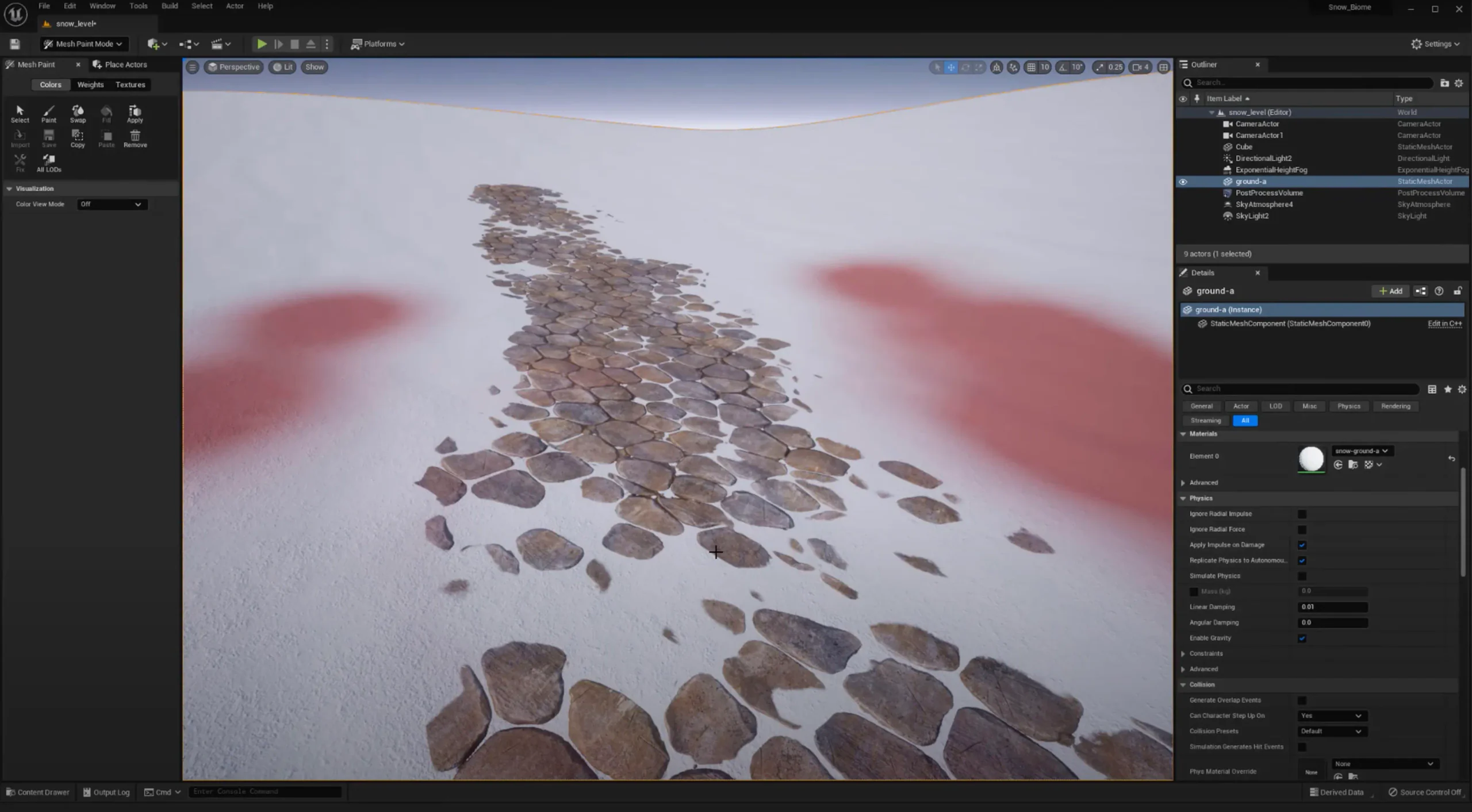
What is Vertex Painting?
Vertex painting is a process where colors, materials, or textures are applied to the vertices of a 3D model. Each vertex acts as a data point that can hold information about color, material blending, or other properties. This technique is particularly useful for:
- Blending materials like moss on rocks or dirt on walls.
- Adding wear and tear effects.
- Enhancing realism without increasing texture memory.
Prerequisites
Before you begin, ensure you have the following:
- A 3D model with sufficient vertex density for painting. Models with more vertices allow finer detail.
- Basic knowledge of Unreal Engine 5, including navigation and working with materials.
- A material setup that supports vertex painting.
Step-by-Step Guide to Vertex Painting in UE5
Step 1: Preparing Your Model
- Import Your Model:
Ensure the model has sufficient vertices for detailed painting. You can use modeling software like Blender or Maya to check and refine vertex density.
Enable Vertex Colors: Confirm that your model supports vertex colors. This setting is usually enabled by default during the import process.
Step 2: Creating a Vertex Paint-Compatible Material
- Open the Material Editor:
Navigate to your material and open it in the Material Editor.
- Set Up a Blend Material:
Use a Vertex Color node to read vertex paint data. Connect it to a Lerp (Linear Interpolation) node to blend two textures or materials based on the vertex color.
Example Setup:
- Texture A: Base material (e.g., stone).
- Texture B: Overlay material (e.g., moss).
- Vertex Color (Red channel): Determines the blend between Texture A and B.
- Add Detail:
Enhance the blend using additional nodes like Multiply, Mask, or Texture Coordinates to refine the effect.
Step 3: Painting on the Model
Enable the Mesh Paint Mode:
In the UE5 toolbar, go to Modes > Mesh Paint or press Shift + 2.
- Select Your Model: Click on the model you wish to paint.
- Configure the Brush Settings: Adjust the brush size, strength, and falloff to suit your painting needs.
- Paint Using Vertex Colors: Use the color palette to choose a vertex color (e.g., red, green, blue, or alpha).Paint directly on the model to blend textures or add details
Step 4: Fine-Tuning and Testing
Adjust Material Settings: Return to the Material Editor to tweak blending or add more layers if needed.
Test in Different Lighting Conditions: Ensure the painted details look natural under various lighting setups.
Tips and Tricks
Use High-Vertex Models: Low-vertex models may result in blocky or imprecise results.
Leverage Channels: Utilize multiple vertex color channels (R, G, B, Alpha) for complex effects.
Save Often: Vertex painting edits are saved directly on the asset; make backups if needed.
Experiment with Brushes: Try different brush falloff and opacity settings for subtle transitions.
Use Cases in Game Development
Environment Art: Add moss, dirt, or snow to surfaces dynamically.
Character Design: Apply blood, dirt, or wear effects without using textures.
Dynamic Effects: Blend materials for real-time changes, such as wet surfaces or damage effects.